

help center
ICON GLOSSARY


The Task Direct Live homepage
This is the main view of Task Direct Live. From this screen, you can:
- View your to-do tasks in each space.
- Create tasks for yourself or other members of a space.
- Track tasks assigned to other members of a space.
- Access every TDL feature within each space.
- View unread messages in the messenger.
- Access application settings and the help center.
TDL spaces
Spaces serve several functions in TDL. They allow you to:
- Organize tasks by space
- Create independent work environments.
- Bring TDL users together in groups.
Each space has:


Space card

Each space is summarized in a card that can be collapsed or expanded to display the space's tasks. Within the card itself, you can see:



Navigation bar

Visible when the space is expanded, it provides access to the various TDL features within the space.






Space Standby Mode
A space can be put on standby for several reasons:
- Do not be disturbed by notifications
- Track tasks assigned to other members of a space.

Waking up a space & morning messages
To wake up a space, simply swipe the space to the left. For a professional space, this opens the morning messages window.

In the morning messages, you can see new items that have arrived since yesterday (and overdue tasks from previous days), as well as notes and tasks requiring a signature or geolocation feedback created specifically in this list (see task form).
Morning messages must be acknowledged by clicking the icon to the right of each task, which will then turn green. (If the task requires a signature, you must sign to confirm receipt, and provide a location if it is a geolocation feedback task).

End of day
To check out of the space, swipe the green card to the left. In a personal space, this puts the space on standby. In a professional space, the End of Day screen appears.

In the End of Day screen, you can view the space's active tasks, as well as tasks assigned specifically for the end of the day (see task form).

(Note: if evening tasks are not completed, they will appear the next day in the daily to-do list, marked as overdue)
Member list
Each space has a list of members. You can easily see:
- the member's role
- if they are in standby (see Schedule)
- if they have an announcement

- the list of members
- A "phone" view of each member, with their to-do lists or calendars
Note: only if you have permission to view their to-do list or calendar
The + button at the bottom of this screen allows you to send invitations to join the space to new members.
You can search for new members using an email address or a phone number.
If the invited person does not have TDL, you can send an invitation to join TDL.
Member profile
By selecting a member, you can access their profile view. From this window, provided you have the necessary permissions, you can:
- View member's tasks
- View member's calendar
- Assign role
- Customize role
- View their task history
- Remove member from space
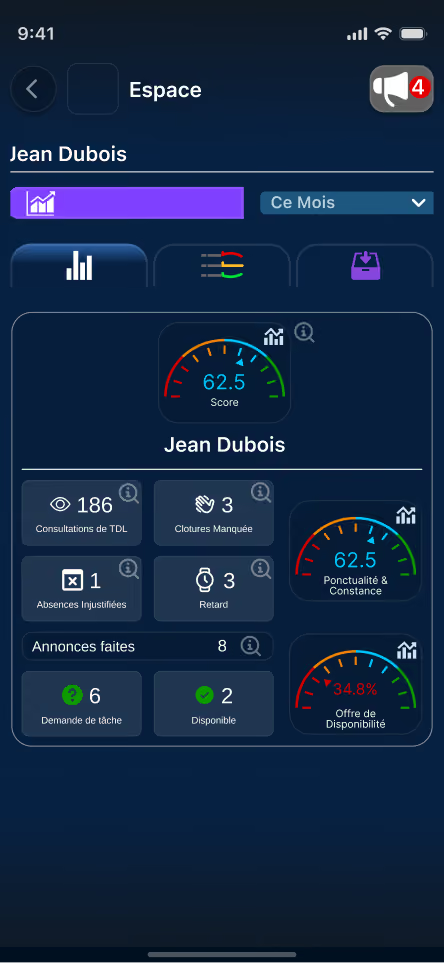
On a pro account, statistics provide general overviews of member activity within a space. This includes:
- Tasks in progress and overdue
- Completed tasks (and those completed late)
- Average task reading responsiveness
- Missed closures (forgot to end the day)
- Unjustified absence (no space wake-up during the day)
- Delay (time elapsed between a space's scheduled start time and its actual start)
- Number of announcements by type
- Quality of reporting by type
You can view this data with an average by:
- day
- week
- month
- year
- total
All this data can be configured per member, which generates a performance "score" based on the required parameters.
(the relevance of this information depends heavily on the activity within the space, and this data currently has no legal standing. Anyone analyzing this data must do so objectively in relation to the specific role)
To help organize a space effectively, TDL allows you to restrict or grant access to various features or information within a space.
Each feature is controlled by a permission. To simplify permission assignment, roles are used to save combinations of permissions.
Permissions
To-do list
Assign tasks
Assign and track tasks for space members.
Yes
Can assign tasks to all members
Same role or subordinate
Can assign tasks to members at the same hierarchical level or below within the space.
Customize
Choose exactly which members this role can assign tasks to
No
Cannot assign tasks
View member tasks
Access a member's to-do list from the space's member list
Yes
Can see all members' tasks
Same role or lower
Can only see tasks from the same hierarchical level or subordinates in the space.
Customize
Choose exactly which members in this space have permission to view these members' tasks
No
Cannot see other members' tasks
Create task templates
Create pre-established task templates and categorize them.
Yes
No
Edit task templates
Edit pre-established task templates and categorize them.
Yes
No
Use task templates
Use task templates when creating a task.
Yes
No
Calendar
Create events
Create events in the space
Yes
No
Edit events
Edit events in the space
Yes
No
Delete events
Delete events in the space
Yes
No
Manage member colors
Assign colors to events by space member
Yes
No
Absence request
Submit absence requests
Yes
No
Process absence requests
Process absence requests
Yes
No
Feedback
Create issues
Create issues in the space
Yes
Can create all types of issues
Customize
Choose which issues this role can create
No
Cannot create issues
View member issues
View issues created in the space, without the ability to process them
Yes
No
Process issues
Be responsible for issues: receive and process them
Yes
Responsible for all issues
Customize
Choose which issues this role can be responsible for
No
Cannot process issues
Add or remove issue types
Create, edit, or delete issue types
Yes
No
Organization

View general member information
View each member's email address, phone number, and role
Yes
Can see all members' information
Same role or lower
Can only see information for members at the same hierarchical level or lower within the space.
Customize
Choose exactly which information this role can see
No
Cannot see member information
View Member List
Access the space member list and view their roles
Yes
Can see all members
Same role or lower
Can only see members at the same hierarchical level or lower within the space.
Customize
Choose exactly which members this role can see in the list
No
Cannot see any members
Invite new members
Invite members to the space
Yes
No
Remove members
Remove members from the space
Yes
No
View Individual Member Calendar
View a member's events in the space
Yes
Can view all members' calendars
Same role or subordinate
Can only view calendars of members at the same or lower hierarchical level in the space.
Customize
Choose exactly which members' calendars this role can view in the list
No
Cannot view member calendars
View Member Schedules
View space member schedules
Yes
Can view all members' schedules
Same role or subordinate
Can only view schedules of members at the same or lower hierarchical level in the space.
Customize
Choose exactly which members' schedules this role can view in the list
No
Cannot view member schedules

View member statistics
View member statistics
Yes
Can view all members' statistics
Same role or subordinate
Can only view statistics of members at the same hierarchical level or lower within the space.
Customize
Choose exactly which members' statistics this role can view in the list
No
Cannot view member statistics
Make announcements
Make announcements
Yes
No
View other members' announcements
Receive announcements in a space
Yes
No
Respond to announcements
Respond to announcements in a space
Yes
No
Configure announcements
Select an announcement and respond to it with a message or a task
Yes
No

Manage roles
Create, delete, modify, and assign roles, and customize by member.
Yes
No
Manage Schedules
Modify and assign schedules for space members (schedules control sleep modes, wake-up notifications, as well as morning messages and evening tasks for the space)
Yes
No

Manage space billing
Manage space billing, banking information, and member support for the space.
Yes
No
Statistics Settings

Statistics settings are not available in role settings; they are only available in member permission settings.

Grace period for shift start
Set the number of minutes after a member's start time before they are marked as late.

Include end-of-day closing compliance
Indicate whether end-of-day completion is factored into the member's total score.
Number of announcements per day
Set the average number of announcements expected from the space member.
To customize the permissions of a specific member (rather than an entire role):


Make your changes, and they will be saved automatically.
Roles
Roles are pre-established templates with pre-programmed permissions. The space types offered by Task Direct Live provide roles already configured for that space type, but you can also adapt existing roles or create new ones.
You can assign a role to a member from their profile view in the member list.
Space billing (Pro feature)
A PRO account, which can create PRO spaces, can manage the billing for these spaces separately from personal invoices. This keeps invoices for different spaces clearly separated, especially if they involve multiple businesses. You can also choose a suitable payment method.
Pro accounts can sponsor members of their spaces, who are then added to that space's invoice.
When you sponsor a member, the new sponsorship payments begin when the member's subscription expires.
Sponsorship
An account owner can sponsor members of their spaces, who will then be added to that space's invoice. You can choose the subscription level for the sponsorship.
When you sponsor a member, the new sponsorship payments begin when the member's subscription expires.
Manage preset tasks
Allows you to configure the preset tasks for this space:
- Create, edit, and delete categories
- Create, edit, and delete tasks
- Reorganize and rename categories and tasks
- Transfer them to other spaces you own
Notification settings
Allows you to configure notifications for this space and set them to silent mode:
- tasks
- feedback
- schedule
- calendar
Ad settings
Edit and create space announcements (see Announcements).
To create an announcement, press the + button, and add a name and an emoji.
To edit an announcement, click the name of the announcement.
To delete an announcement, click the X next to the announcement.
To-do list tasks
Task visuals


View task details

Subtask indicator, with the number of subtasks to complete

Task title. If the task type is a progress bar, you can slide with one finger to indicate the percentage of completion. If the task has subtasks, the progress bar advances based on the number of completed subtasks.

Task type indicator (see task types).
Separator

Separator in the to-do list indicating:
- In received tasks, the creator of the task
- In assigned tasks, the person you assigned the task to
Completed tasks

Below the active tasks, an expandable separator displays tasks completed today. You can move a task back to active by clicking the button on the right (or, in the case of a progress bar task, by sliding to a new percentage below 100%).
When the completed tasks category is expanded, a "Task History" button allows you to view all the tasks you have completed chronologically in this space. Tasks completed during the day appear in the history after midnight.
Guide: quickly assign a simple task to a member
To create a task for a member of the space:

Click the + button for the space in the to-do list.

Choose Other and select the recipient(s), then click Confirm.

Give the task a title.

Choose the task type (gauge by default).

Click GO to create the task.
Guide: tracking the progress of an assigned task
There are several ways to track the progress of a task in TDL.
On the home page
Go to the space where you assigned the task and click the button to view assigned tasks.
You will see the tasks you have created for other members of the space, categorized by person.
In the member list
If you have permission to view members' to-do lists, you can go to the member list to see their entire to-do list.
Click this button to go to the team and space window.

Click on members.

Select a member and click View tasks.
You will see the member's entire to-do list (including tasks they have assigned to themselves).
The + button allows you to access the task form, with this member as the recipient.
Task types
TDL offers many types of tasks, allowing you to adapt to any situation.

Gauge - Slide to show the task completion percentage. Click the button on the right to indicate the task status:

Green: everything is fine

Orange: there are concerns

Red: blocked, there are issues

Checkbox - Check the box to complete the task.
The task creator can request feedback from the person to whom they assigned it. This is done via a Jacpak attached to a validation task (see Jacpak).
(note: a feedback-type task, or a task with a feedback sub-task, will only disappear once the task creator validates the feedback.)

Signature - Click and sign to acknowledge receipt.

Photo & Video - Take a photo or video directly, or attach one from your phone's gallery.

Attachment - Choose an attachment to add (PDF or other) to complete the task.

Written response - Write a reply.

Voice response - Record a message to complete the task.

Location - Provide a geolocation or address to complete the task.

Contact card - Send a contact card.
Task creation
To create a new task in the space, click the + button. It floats at the bottom right of the to-do lists.
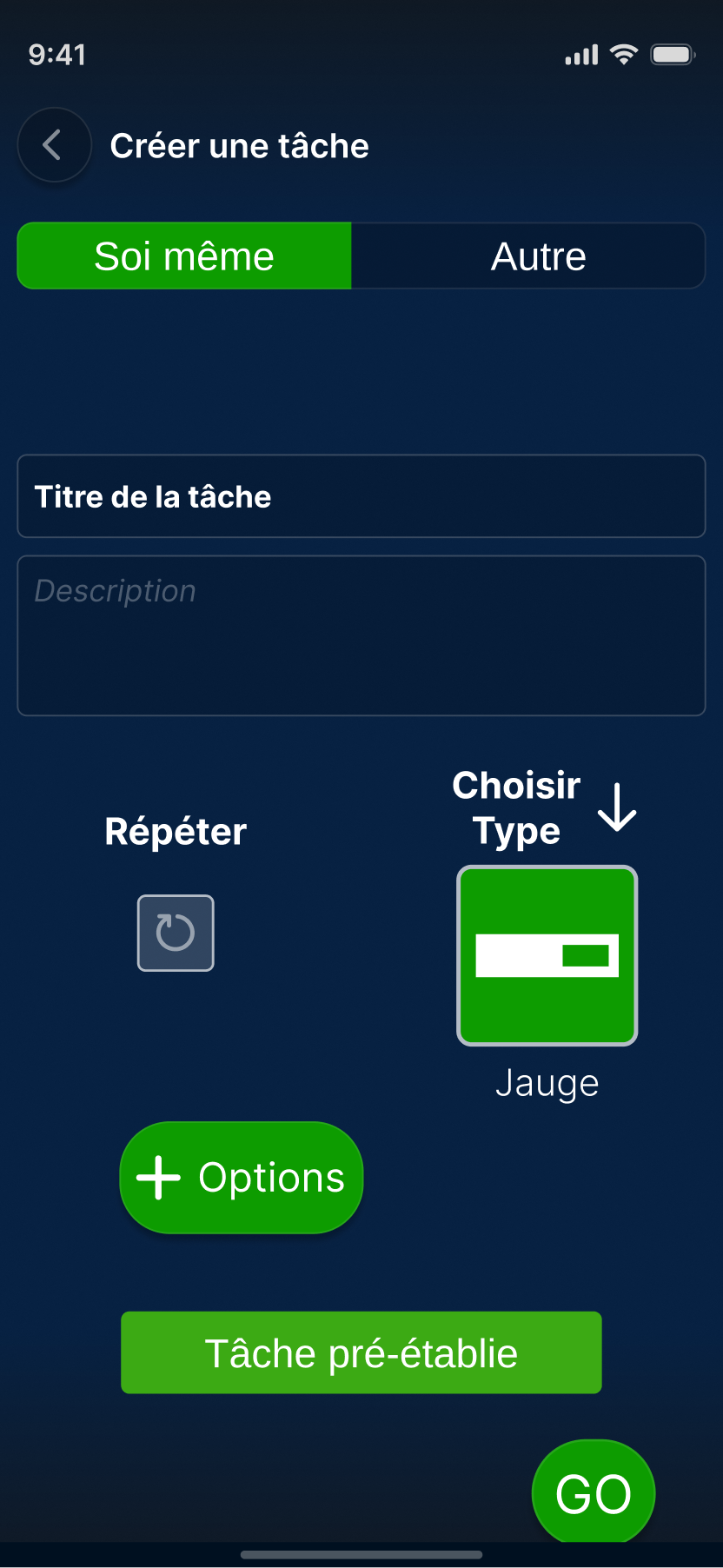
Quick form

Choose the task recipient (yourself or someone else). The default recipient is yourself. When you select "Other," a list of space members appears: you can choose one or more members.

When there are multiple recipients, you can choose from 3 assignment types:
- Individual: each person receives a copy of the task, and each person must complete it.
- Shared: a single task synchronized between recipients, where progress can be updated by each recipient.
- First to claim: when the task arrives, one recipient must take responsibility for it, which removes it from the to-do lists of the other recipients.
Task title (required).

Write a text description (optional).

Select the task repetition frequency:
- Never
- Every <x> days
- Every <x> weeks
- Every <x> months
- Every <x> years
- Every <x> centuries
Select the task type.
By default, the gauge task type is selected, but you can change this by checking "default" when choosing the task type.

Open the detailed task creation form (see detailed form).

Choose a preset task (see preset tasks).
Finalize and create the task.
Detailed form
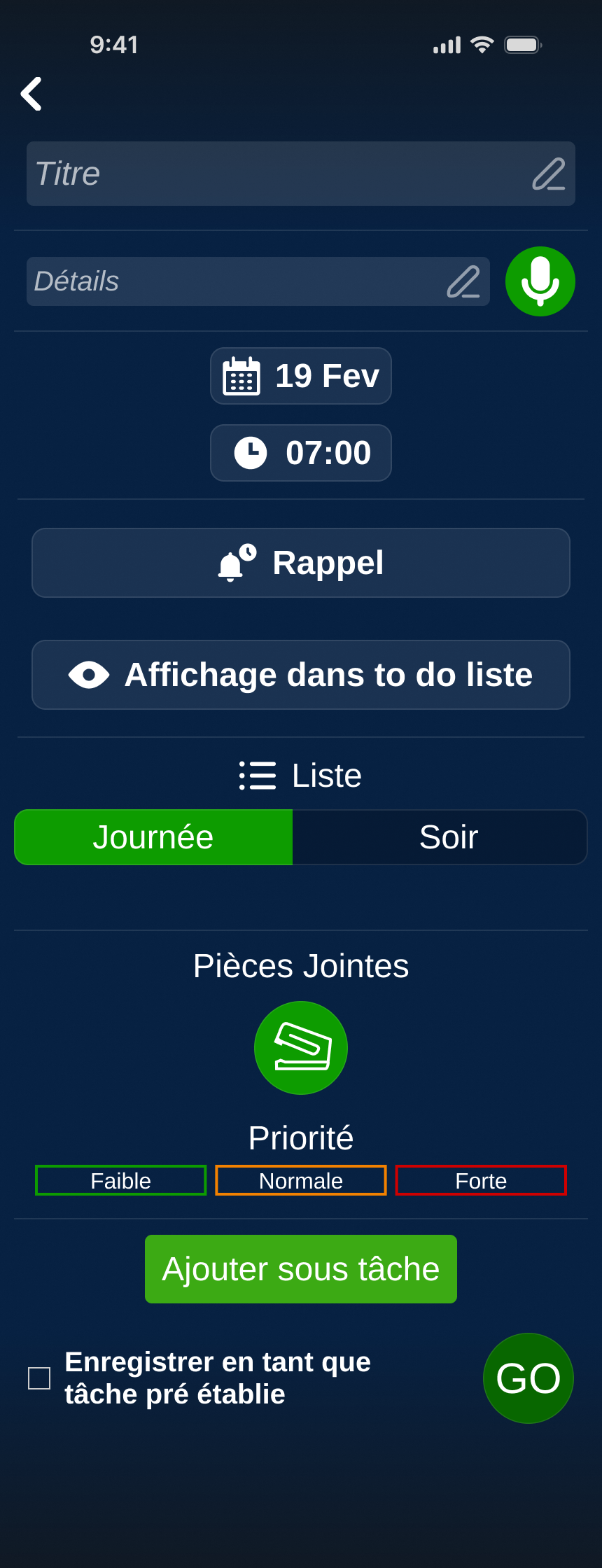
The detailed form offers more options for configuring the task. This includes:
- Date and time
- Reminder: add a reminder to morning messages X days before the task due date (see morning messages)
- To-do list display: how many days the task appears in the to-do list before the due date
- List in which the task appears: Morning (Check, Signature, and Geolocation types only), Daytime, or Evening
- Attachments: photo or video, document (PDF, etc.), contact card, geolocation, Jacpak (see Jacpak)
- Priority level: indicates the importance the creator places on the task. The higher the priority, the higher the task is ranked in the list.
- Subtasks: adding a subtask changes the main task to gauge type (gauge progress depends on the number of completed subtasks). Subtasks can be of any type.
- Save as task template (see preset tasks)
Preset tasks
Preset tasks save tasks with all parameters pre-filled. This allows you to assign complex tasks without having to recreate them every time.
TDL contains a large library of hundreds of preset tasks, categorized by profession, situation, or environment.
Preset tasks can be organized and modified from the space settings.
When selecting a preset task, you can send it directly to the recipient or click + Options to modify it.
Templates with subtasks can be expanded, and each subtask can be selected to be part of the task.
A preset task where only certain subtasks are selected can be saved as a new template.

The TDL calendar

Accessible in every space via this button.
TDL offers a calendar with all standard features.
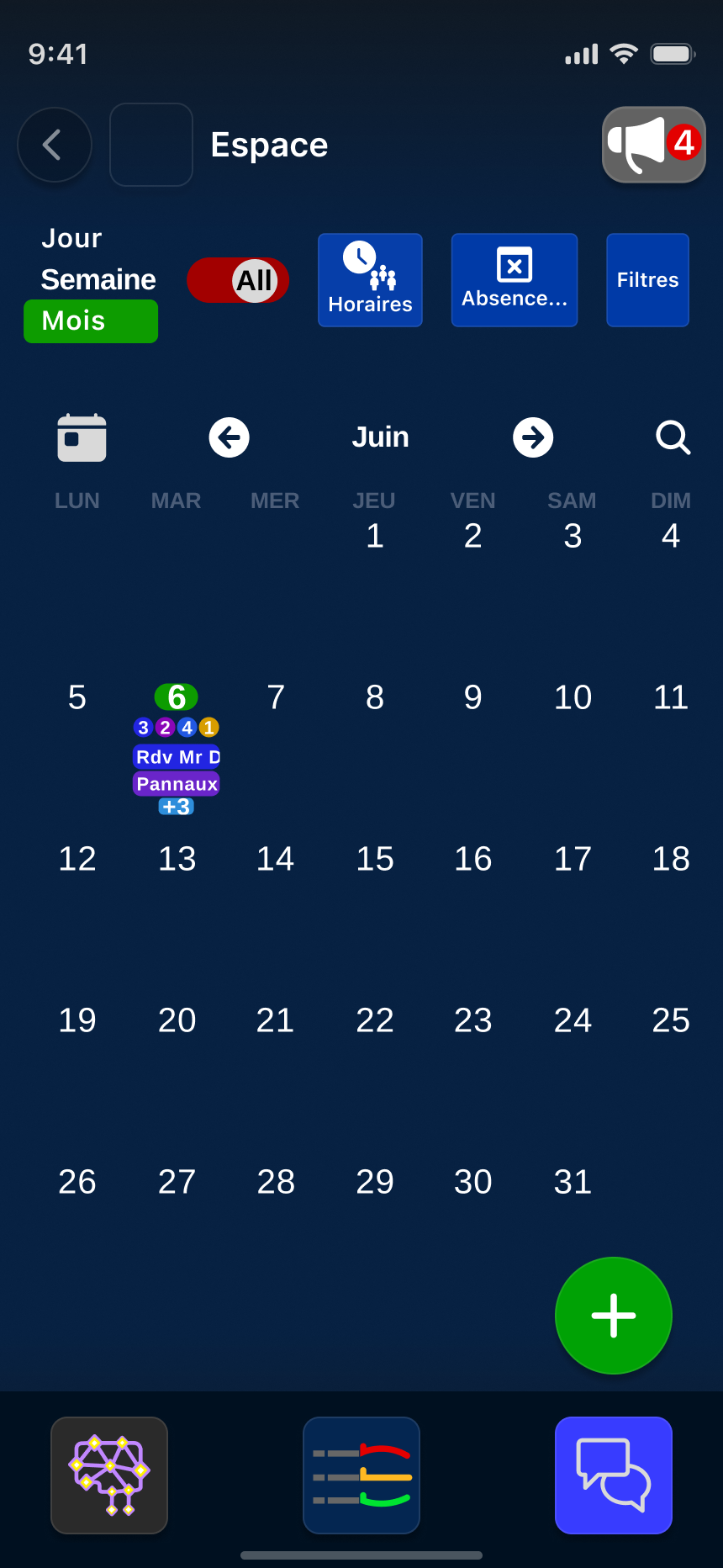
Calendar view
There are three calendar views:
- Month
- Week
- Day
An ALL switch allows you to see events from all your spaces to avoid creating overlapping events. Events from other spaces appear at half opacity.
You can view previous or next months, weeks, and days using the bar above the dates (you can also swipe the calendar left or right).
In the month and week views, clicking on a day displays the daily view.
The + button allows you to create new events (see event form).
Member colors
Every member with permission to create events can be assigned a color in a space's calendar. This makes it easy to see who created the event. If an event has multiple participants, it is displayed with stripes in the colors of two different participants.
Event form

Event title (required)
Select participants
Event description (voice or text)
If checked, removes one hour from the selection.
Selection of the start and end date and time for the event.
Choose a repetition frequency. In Pro mode, you can select "working day" to prevent repetitions from falling on a weekend.
Create a reminder in the morning messages as a checkbox task.
This option adds a checkbox task to the to-do list on the day of the event.
Absence request
Absences, vacation, and sick leave can be managed in TDL. A user submits their request including the dates, and the person responsible for absence management (see roles and permissions) can approve or decline the request. An absence manager can also create or add absence dates for other members of the space.
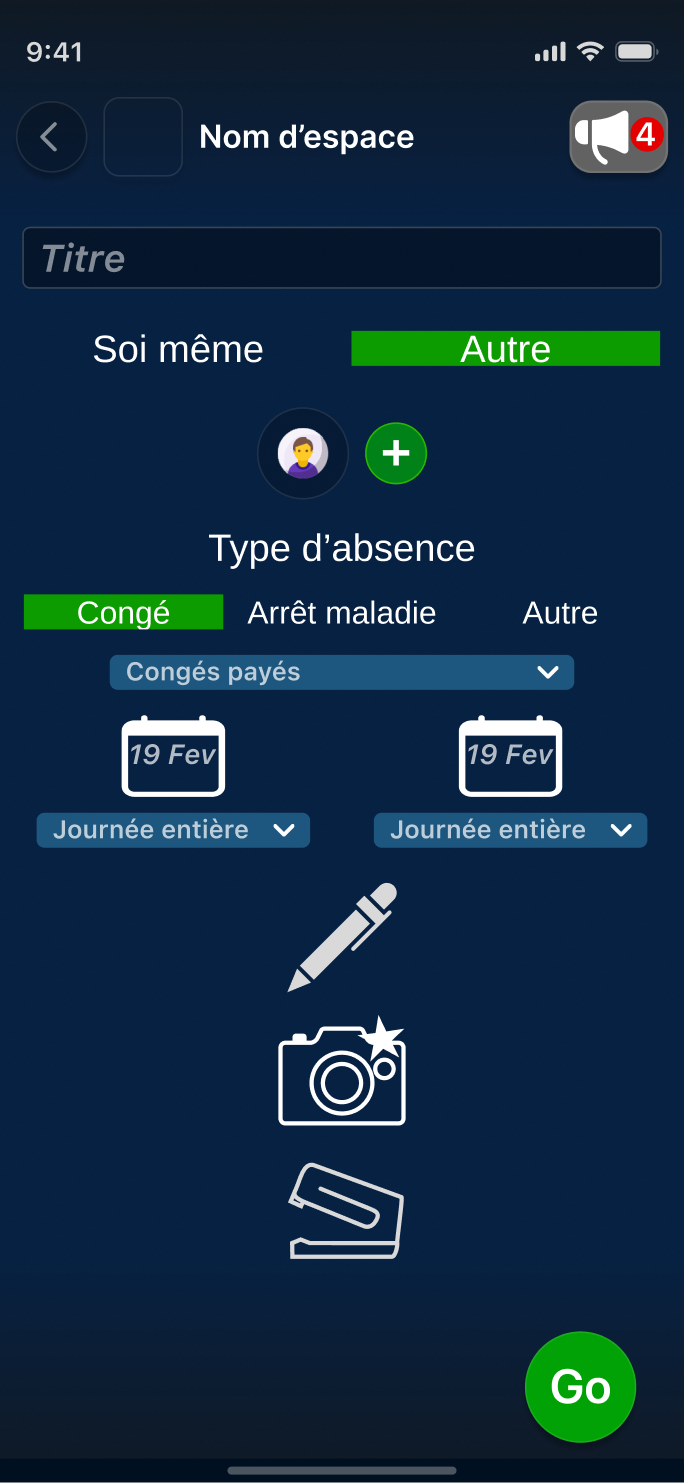
Request title (required)
By default, you can only make requests for yourself. However, if you have permission, you can enter absences for other members of the space who, for example, may have forgotten to do so.
Select the type of absence.
Select the start and end date. You can refine the selection with:
- Morning
- Afternoon
- All day
As with a Jacpak, you can add a written message, photos, and attachments to the request.
Opening hours

Accessible in the calendar of each space via this button.
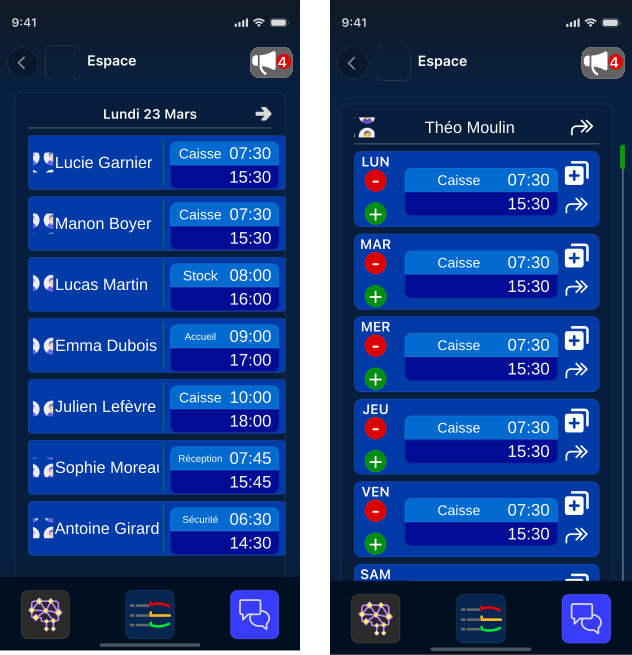
With a Pro account, you can assign schedules to members of the space. It is possible to assign multiple time slots during the day and give each slot a title.
In a Pro space, schedules are linked to the member standby system within the space (see daily cycle of a space).
In the schedule view, you can see the time slots of other members in the space (if you have permission). You can also view other days of the week using the arrows above the names.
By clicking on a member, you can view their entire weekly schedule and, if you have permission, add, delete, or modify their daily hours.
Individual slots or full schedules can also be copied to other days or to other members.
Guide: creating an event
To create an event in a space:
Click the calendar button in the space navigation bar.
Click the + button at the bottom right of the screen.
Give the event a title.
Write a description (optional).

Enter the date and time of the event.
Click GO to create the event.
Guide: creating an absence request
Let's say you want to request time off:
Click the calendar button in the space navigation bar.

Click the Absence button at the top of the screen. The absence form will appear.
Give the request a title.
Enter the date(s) of the leave and specify if the first and last days are half-days.

Write a description (optional).

If necessary, add attachments to justify the absence (e.g., a medical certificate for sick leave).
Click GO to submit the request. You will be notified as soon as the request has been processed.
Jacpaks
Jacpaks are a Task Direct Live invention. They are a method for sending a packet of information all at once.
You can find Jacpaks in updates, as well as in tasks and messaging.

Jacpak icon
Jacpak form
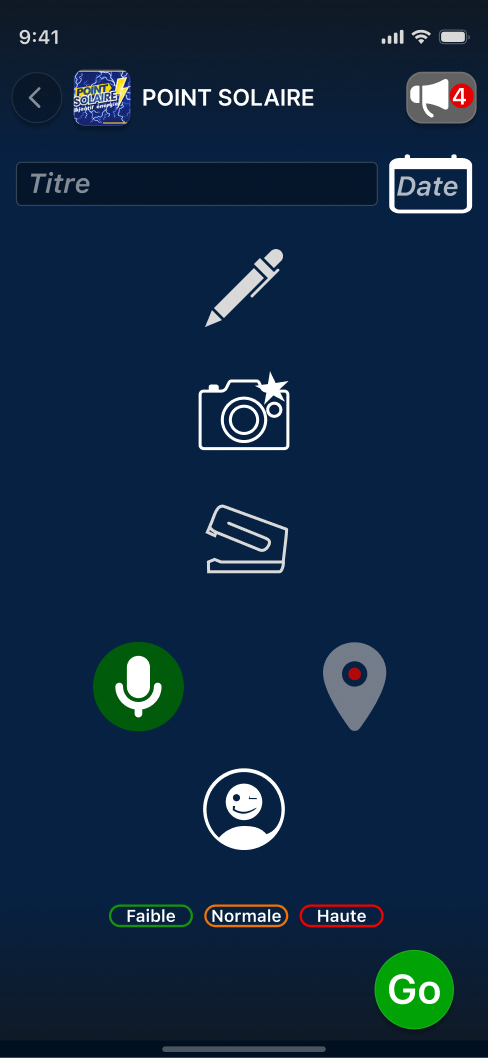
A form is used to create a Jacpak.
You can fill a Jacpak with several types of data:
- A title (required)
- A text description
- Photos and videos
- Attachments
- Geolocations
- Voice messages
- Contact cards
- A date (which can be added to the calendar)
- A priority (in reports)
TDL reports
Reports allow you to send information to specific people assigned as managers of that report, in the form of a ticket to be processed. The member must have permission to process this type of report. It is possible to have permission to view reports without being a manager (see roles and permissions).

Accessible in every space via this button.
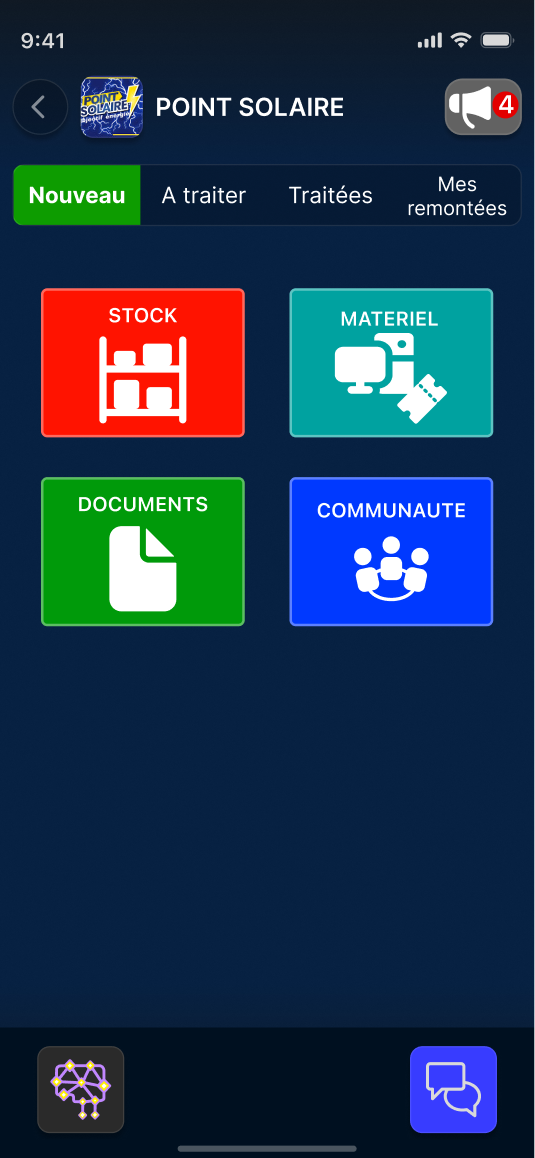
Report selection
When you click on the reports button for a space, you are taken to the selection screen for the type of report to create.
TDL offers pre-established report types, but each space can customize its reports and create new ones.
Select a category and a report type to create: this opens the form to create a report using a Jacpak (see Jacpak).
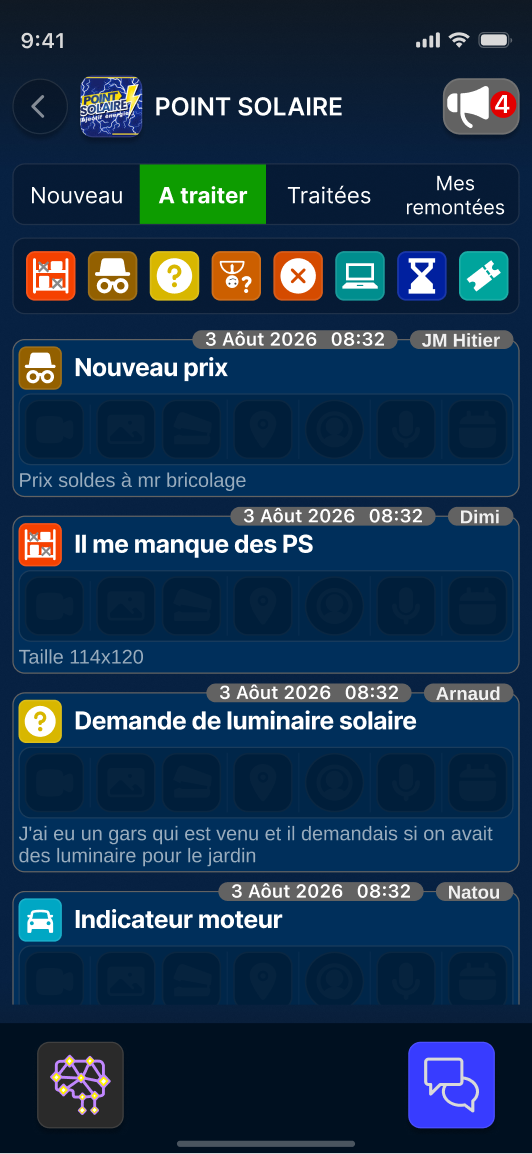
Inbox
If you are responsible for reports, you can find them in the “To process” and “Processed” tabs. A selection bar for report types allows you to filter by type.
To be processed
New reports that require action, or that are not yet completed, arrive in this tab. They are sorted chronologically. For each report, you see a Jacpak card (see Jacpak) which indicates:
- The sender
- The priority (the color of the border)
- The date and time of arrival
- A preview of the Jacpak content
Processed
The history of received reports that have been processed. Once a report has been processed, it can be found in this tab. You can also see if the report has a qualification and a comment (see report processing).
My reports
A view of your own sent reports, in chronological order. As with processed reports, you can see if the report has a qualification and a comment.
Report processing
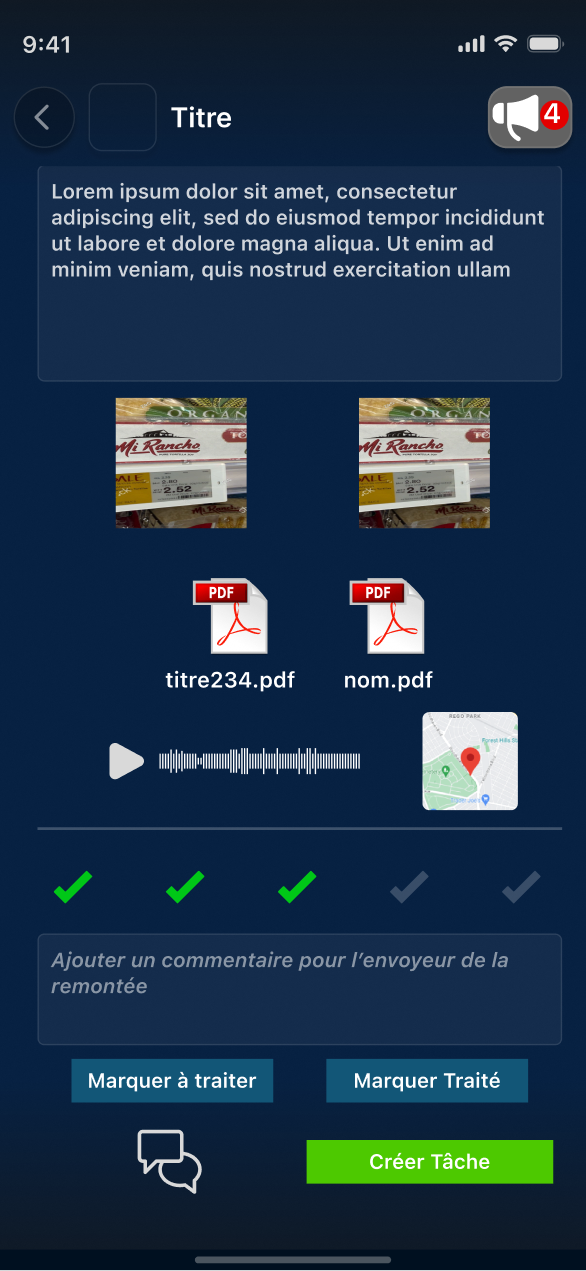
To process a received report, click on the relevant Jacpak to open it in detail. Below the report content, you will find the controls to manage it.
Qualify and comment on the report
A manager can qualify a report to let the sender know whether it was useful or not.
Categorize the report
Move the report between the pending and processed report lists.
React to the report

If you wish, you can contact the person who submitted the report directly via messaging by clicking this button.

You can also create a task from the report, for yourself or someone else. The report will be attached to the task as a Jacpak.
Guide: processing a report
If you are the manager of a report, you will receive notifications when your reports arrive.
In the relevant space, click this button to go to the reports window.

By default, you land on the report categories window. Click “To be processed” to view new reports.
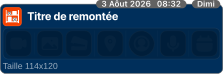
Reports are sorted by arrival time. A Jacpak preview shows the title, sender, arrival date, and content of the report. Click on it to see the details.

Indicate the quality of the report (optional).

Add a comment for the person who created the report (optional).

Create a task with the attached report, or contact the person who created the report (optional).
After taking the necessary action, click “Mark as resolved” to close this report.
Guide: creating a report (out of stock)
Imagine you are a store employee and you have just run out of stock for an important product.
In the relevant space, click this button to go to the reports window.
By default, you land on the report categories window.

Select Stock.

Click Out of stock.
The Jacpak form appears.
Give the report a title (e.g., the product name).

Set the priority. In our example, we are setting it to high priority.
Click GO to send the report.
The purchasing manager will receive the report and will be able to process it.
Guide: tracking the status of a report

You can check the status of the report you created by going to the “My reports” tab.
TDL Announcements
What are announcements?
Accessible via the button in each to-do list space view.
A status system to let other members of the space know:
- your availability
- if you don't want to be disturbed
- a need for help or a task
- etc.
You can add a location. Announcements are customizable in the space settings.
React or reply to an announcement

When an announcement is made, a notification appears at the top of the screen for all authorized members.
From this view, you can:
- view announcements for each space
- if you have permission within the space, send a message directly to the announcement creator, or assign them a task.
TDL messaging

Accessible throughout the application via this icon.
Bottom right of the screen on mobile. Top right on desktop (the messaging feature is always available; you can show or hide it whenever you like).
The messaging feature allows you to communicate with all TDL users. You can easily start conversations with users you share spaces with, or by searching for them via email address or phone number, provided they have included these in their account information.
The conversation list
In the messaging section, you can see all current conversations in chronological order.
A search bar makes it easy to find:
- users
- conversations
- topics in conversations
- Jacpaks in conversations
The + button allows you to create new conversations, either private ones with another user or group chats with multiple members.
Note: if you cannot find an existing account when searching for a contact, TDL allows you to send an invitation to join TDL to that email address.
The message view
Within a conversation, you have access to all the standard features of an instant messaging app.
Write a message

Record and send a voice message.
Click to start recording, click again to stop and send.
Send attachments:
- Take a photo with the camera
- Select a photo or video from your phone's camera roll
- Send a document (PDF, etc.)
- Share a contact card: on mobile, you can select TDL contacts or phone contacts (if you grant access); on desktop, only TDL contacts.
- Share a location: your current position or an address
- A Jacpak, which gathers everything into a single information package (see Jacpak)
Reply to a message by swiping on it.
Select a message by long-pressing it. Once a message is selected, you can:
- react to it with emojis (the list appears next to the selected message)
- access options at the top of the window:

Reply to message

Report message to TDL support

Copy message content

Forward message to another conversation

Delete message
By clicking on the name at the top of the conversation (group or private chat), you can find conversation details and additional options:
- For a group, the list of conversation members
- For a user, shared group conversations
- All media, links, and documents shared in the conversation
- Notification settings, including silent mode for the conversation
- Report group or user
App settings

Accessible via the button at the bottom of the home page.
My account
Edit account information:
- First name
- Last name
- Phone number
- Password
Billing
Access account billing information:
- Account type (business or personal)
- Billing cycle
- Renewal date
Also allows you to:
- change subscription plan
- update payment information
- cancel subscription
If the subscription is cancelled, the service remains available until the end of the billing period.
Language
Change the language used in TDL.
Policies & terms
View TDL's terms of sale, terms of use, and privacy policy.